
The format TIFF (Tagged Image File Format) can be considered the “safe” of digital photography. If JPEG is a quick summary and RAW is the original negative, TIFF is the definitive high-quality print that preserves every single detail of your image.
Here is a practical guide to understanding what it is, without unnecessary technical jargon, and when you really need it.
What exactly is TIFF?
It is an image format without data loss (lossless).
When you save a file as JPEG, the software deletes some information to reduce its size (compression). lossy). If you open and save that JPEG multiple times, the quality continues to degrade with each step. TIFF, on the other hand, doesn't discard anything: it preserves every single pixel and every shade of color. You can open it, edit it in Photoshop, and save it a hundred times without losing a bit of quality.
Where is it used in the workflow?
No one shoots directly in TIFF (that’s what RAW is for in the camera), and no one uses it for social media or the web (the files are huge, and browsers have a hard time loading them). TIFF serves two specific purposes for a photographer:
-
Switching between software: When you need to export a photo from your editing software (such as Lightroom or Capture One) to Photoshop for extensive retouching or compositing, TIFF is the perfect “bridge” because it transfers the image at the highest possible quality.
-
The Print Archive (Fine Art): This is the ideal format for saving your edited and finalized photo. Professional photo labs and printing companies almost always require a TIFF file.
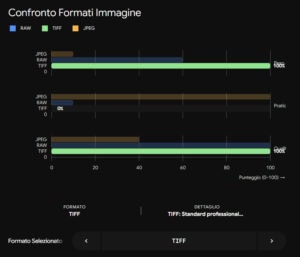
Use this panel to visually compare how TIFF performs compared to the formats you use every day:
Expert advice: TIFF supports the levels (layers). Many photographers save their multilayer files directly in TIFF format instead of using Photoshop’s proprietary format (.PSD). TIFF is, in fact, a universal format that you’ll be able to open with almost any graphics software—even twenty years from now.
TIFF in Comparison
| Format | Key Benefits | Main Disadvantages | Ideal Use |
| TIFF | Top quality, no data loss when saving, supports layers | Very large files; slow to handle | Fine Art Printing, Intermediate Advanced Photo Editing |
| RAW | Maximum dynamic range, ideal for bringing out details in shadows and highlights | It still needs to be developed; it's not ready to be shared. | Photo taken in the car |
| JPEG | Extremely lightweight, universal, compatible with all devices | Compressed quality; it will be ruined if edited | Web, social media, quick delivery to customers |
The 3 Golden Rules
If you decide to incorporate TIFF into your workflow, keep these practical tips in mind:
-
Choose 16-bit for editing: When you transfer a photo from Lightroom to Photoshop to edit it, be sure to export it as a TIFF to 16-bit (not 8-bit). This will guarantee you trillions of extra color shades, a fundamental trick to avoid the effect banding (those ugly, jagged streaks of color that sometimes appear in the sky or in soft gradients).
-
Go ahead and compress without hesitation: In the save dialog boxes, you'll find compression options called ZIP o LZW. Always use them! They are “smart” compression methods that reduce file size (sometimes by as much as 30–40%) while keeping the quality completely intact (lossless).
-
Exceed the PSD limit: If you do compositing or heavy work, be aware that Photoshop's native format (.PSD) has a technical weight limit of 2 GB. If you save in TIFF, you won't have this limit and will be able to keep huge files while preserving your layers, masks, and paths.
 Italian
  English
  German
  French